
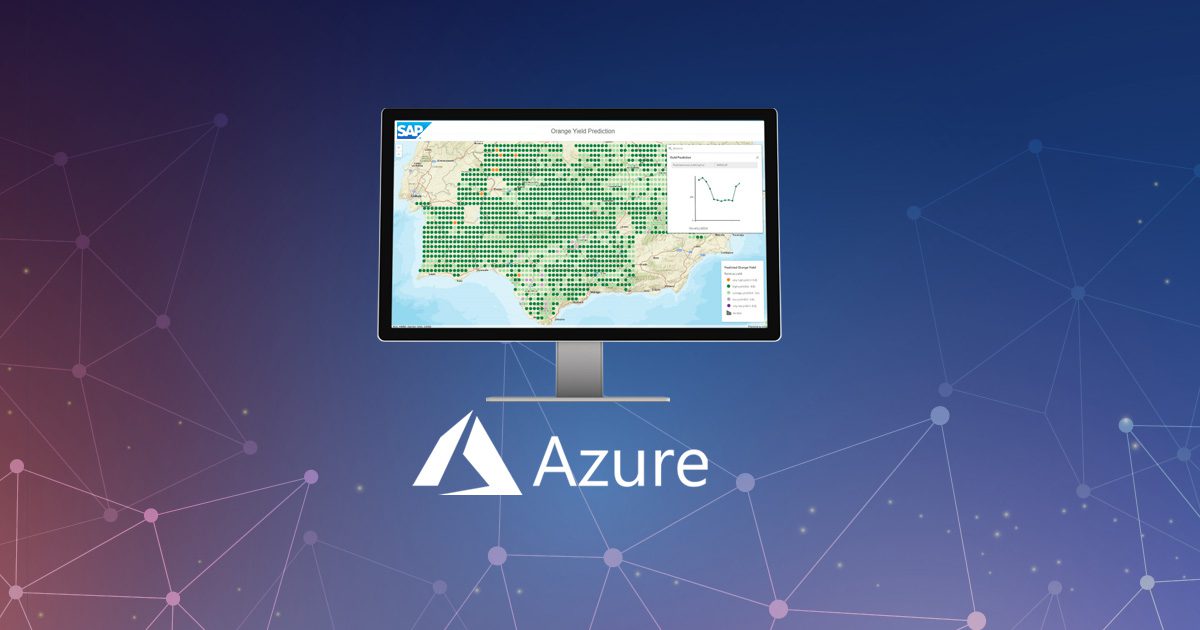
This solution addresses one of the most frequent integration challenges faced today: connecting on-premise systems to software in the cloud. The good news is that Azure’s low-code development tools are making this hybrid connectivity much easier to achieve than it once was.
Why perform SAP HANA integration with Azure?
- consumption-based pricing: start with a free Azure account and only pay for the integration volume you consume
- low-code development: Azure’s graphical interface speeds up development and increases reusability
- SAP connector: the pre-built Azure SAP connector is useful for integrating software such as SAP ECC
- on-premise connectivity: Azure’s on-premise data gateway provides quick and secure data transfer with the cloud
- an Azure Logic App
- a custom Azure connector
- an Azure on-premise data gateway
- an ASP.NET Core API
- and, of course, the SAP HANA system
Developer’s guide
How to enable SAP HANA integration with Azure using an ASP.NET core API
- creating the custom Azure Logic Apps connector
- creating the on-premise ASP.NET Core API
Part 1: create a custom connector in Azure Logic Apps
2. In New, search for “logic apps custom connector”. Then select “Logic Apps Custom Connector”.
3. Select “Create” within the Logic Apps Custom Connector window.
4. Register your connector with the necessary details (see this example):
| Property | Description | Example |
| Subscription | Azure subscription for the connector | "Contoso Azure Subscription #1" |
| Resource group | Azure resource group for the connector | "logic-apps-custom-connectors" |
| Name | Name of your custom connector | "SentimentDemo" |
| Location | Same Azure region as your logic app | "(US) West US" |
5. Review the details you entered in Create Logic Apps Custom Connector and finally select “Create”.
At this point the custom connector menu should open automatically. If not, open it directly from the relevant subscription and resource group. You’re now ready to define the connector’s behaviour with Postman or OpenAPI.
Part 2: create an ASP.NET Core API
1. Create a new console app with the commands below:
Shell (Windows)
cd %HOMEPATH%/HANAClientsTutorial

dotnet new console -o dotNET
Shell (Linux or Mac)
export HDBDOTNETCORE=/home/dan/sap/hdbclient/dotnetcore

cd $HOME/HANAClientsTutorial

dotnet new console -o dotNET
If using Linux or Mac, you should change the HDBDOTNETCORE variable to point to the location of the libadonetHDB.so or libadonetHDB.dylib file.
2. Open the dotNET.csproj file:
Shell (Windows)
cd dotNET

notepad dotNET.csproj
Shell (Linux or Mac)
cd dotNET

pico dotNET.csproj
Next, add the code below under the PropertyGroup section to indicate where to load the SAP HANA Client .NET Core driver from. Change the HintPath section with the details of where the dll is on your machine.
Shell (Microsoft Windows)
<ItemGroup>

<Reference Include="Sap.Data.Hana.Core.v2.1">

<HintPath>C:\SAP\hdbclient\dotnetcore\v2.1\Sap.Data.Hana.Core.v2.1.dll</HintPath>

</Reference>

</ItemGroup>
Shell (Linux or Mac)
<ItemGroup>

<Reference Include="Sap.Data.Hana.Core.v2.1"> <HintPath>/home/dan/sap/hdbclient/dotnetcore/v2.1/Sap.Data.Hana.Core.v2.1.dll</HintPath>

</Reference>

</ItemGroup>
When you’ve updated the dotNet.csproj file, save and close. The SAP HANA Client interface for .NET Core is compatible with version 2.1, and 3.x releases of .NET Core.
3. Use a code editor to edit the file Program.cs.
Shell (Windows)
notepad Program.cs
Shell (Linux or Mac)
pico Program.cs
4. Copy the code below and use it to replace everything in the Program.cs file:
C#
using System;

using Sap.Data.Hana;

namespace dotNETQuery

{

class Program

{

static void Main(string[] args)

{

try

{

// User1UserKey retrieved from hdbuserstore contains server:port, UID and PWD

// encrypt must be true when connecting to HANA Cloud

// If hdbuserstore is not used to retrieve the connnection information, the format would be

// "Server=10.7.168.11:39015;UID=User1;PWD=Password1;encrypt=true;sslValidateCertificate=false"

using (var conn = new HanaConnection("key=User1UserKey;encrypt=true;sslValidateCertificate=false"))

{

conn.Open();

Console.WriteLine("Connected");

var query = "SELECT TITLE, FIRSTNAME, NAME FROM HOTEL.CUSTOMER";

using (var cmd = new HanaCommand(query, conn))

using (var reader = cmd.ExecuteReader())

{

Console.WriteLine("Query result:");

// Print column names

var sbCol = new System.Text.StringBuilder();

for (var i = 0; i < reader.FieldCount; i++)

{

sbCol.Append(reader.GetName(i).PadRight(20));

}

Console.WriteLine(sbCol.ToString());

// Print rows

while (reader.Read())

{

var sbRow = new System.Text.StringBuilder();

for (var i = 0; i < reader.FieldCount; i++)

{

sbRow.Append(reader[i].ToString().PadRight(20));

}

Console.WriteLine(sbRow.ToString());

}

conn.Close();

}

}

}

catch (Exception ex)

{

Console.WriteLine("Error - " + ex.Message);

Console.WriteLine(ex.ToString());

}

}

}

}
Now save and close the Program.cs file. Take note of the fact that the address, port, UID and PWD will be retrieved from the hdbuserstore. This app uses some of the SAP HANA client .NET Core driver methods, such as HanaConnection. To learn more about this class, take a look at the Microsoft ADO.NET Connection Properties.
5. Finally, run the app:
Make sure you are in the same directory as Program.cs and use the command:
Shell
dotnet run
And you have now successfully created a .NET Core application that queries an SAP HANA database.
Connect anything with Azure
We’re a Microsoft Partner with decades of integration experience. So whatever you need to connect with Azure, our experts will provide end-to-end consultation, development, and support.